 MRPverse
Returns, exchanges and cash on delivery
Restock or write off a return in one step, send a replacement, and reconcile cash-on-delivery by courier.
Two-minute video
A narrated walkthrough of this exact guide. Recording in progress; the script is final and matches the steps below.
Step 1
Create a return
Open the sales order → Return, or Sell → Returns → New. Pick the lines and quantities coming back and a reason from your list.
Click path:
Sell → Returns → New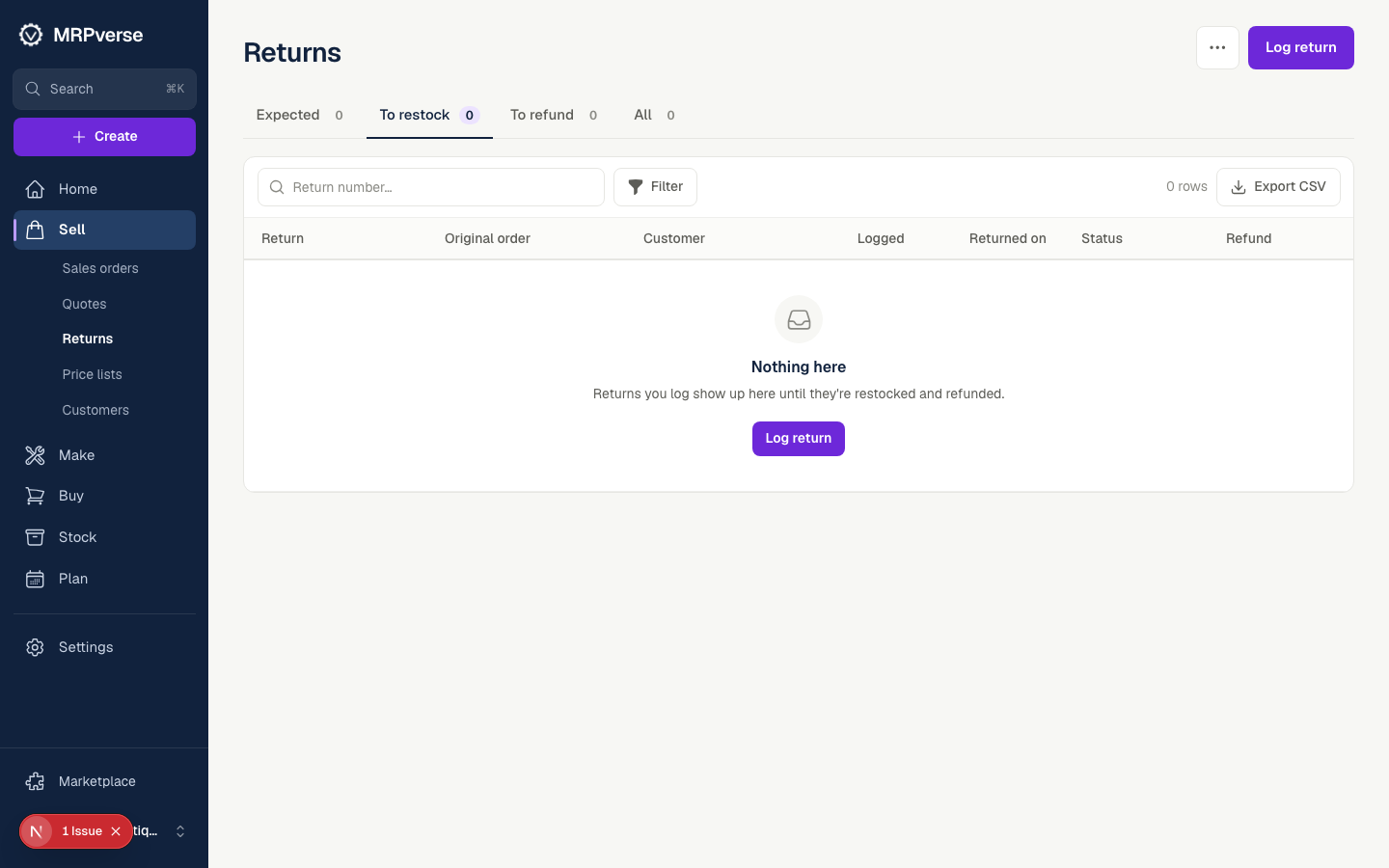
Step 2
Restock or write off
Per line choose Restock (back into a warehouse with a lot) or Write off (damaged). The ledger records both with the return as the source.
Click path:
Sell → Returns → (return) → Restock / Write offStep 3
Exchange in one step
Tick Exchange: send a replacement. A replacement sales order is created for the same customer and reserved from stock; change the item or size per line if needed.
Click path:
Sell → Returns → (return) → ExchangeStep 4
Return reasons
Sell → Returns → Reasons shows returns by reason and product, so a size that keeps coming back shows up in a week, not a quarter.
Click path:
Sell → Returns → Reasons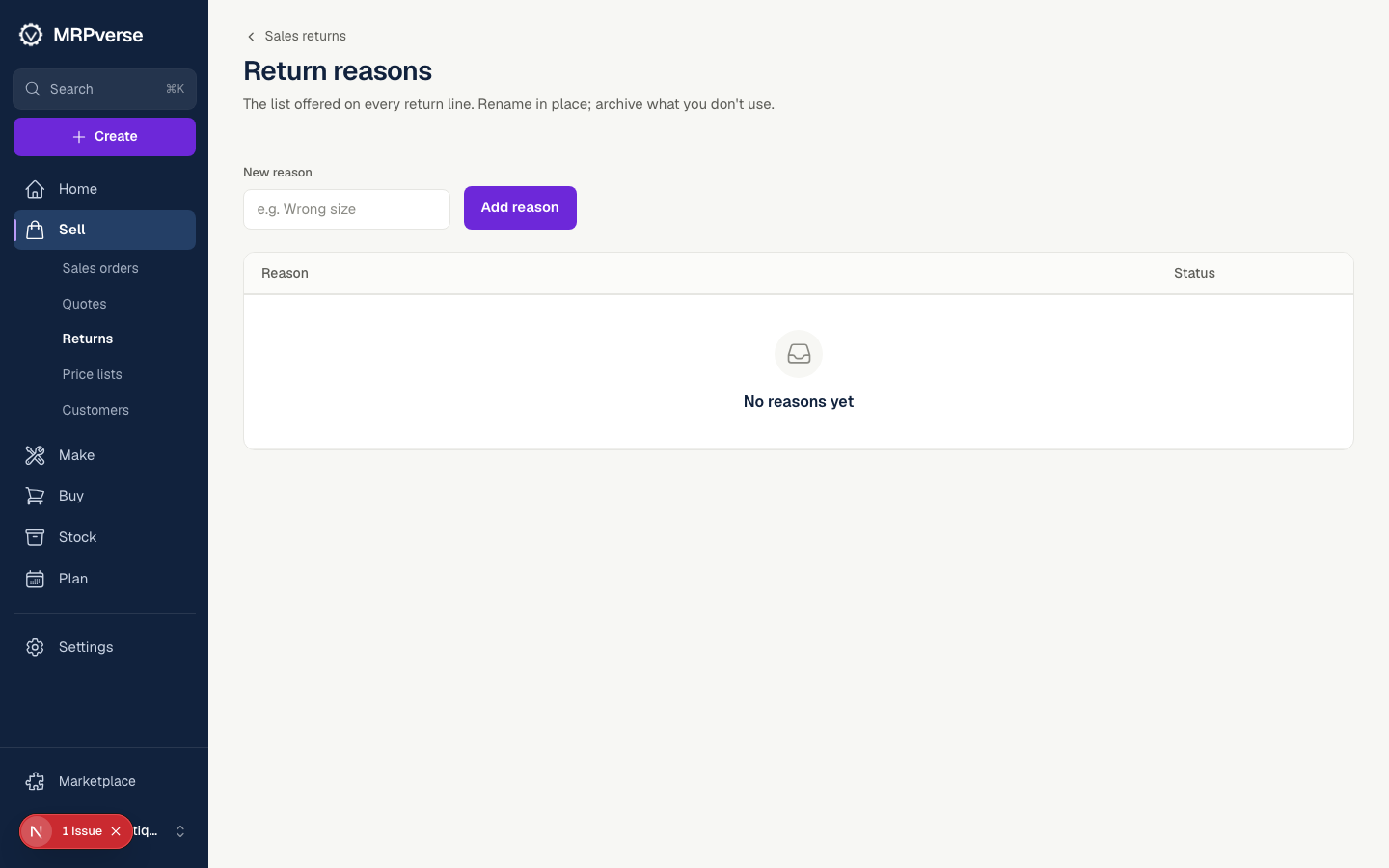
Step 5
Cash on delivery
Open Cash. COD orders are grouped by courier with delivered, returned and refused counts and the amount the courier owes you.
Click path:
Cash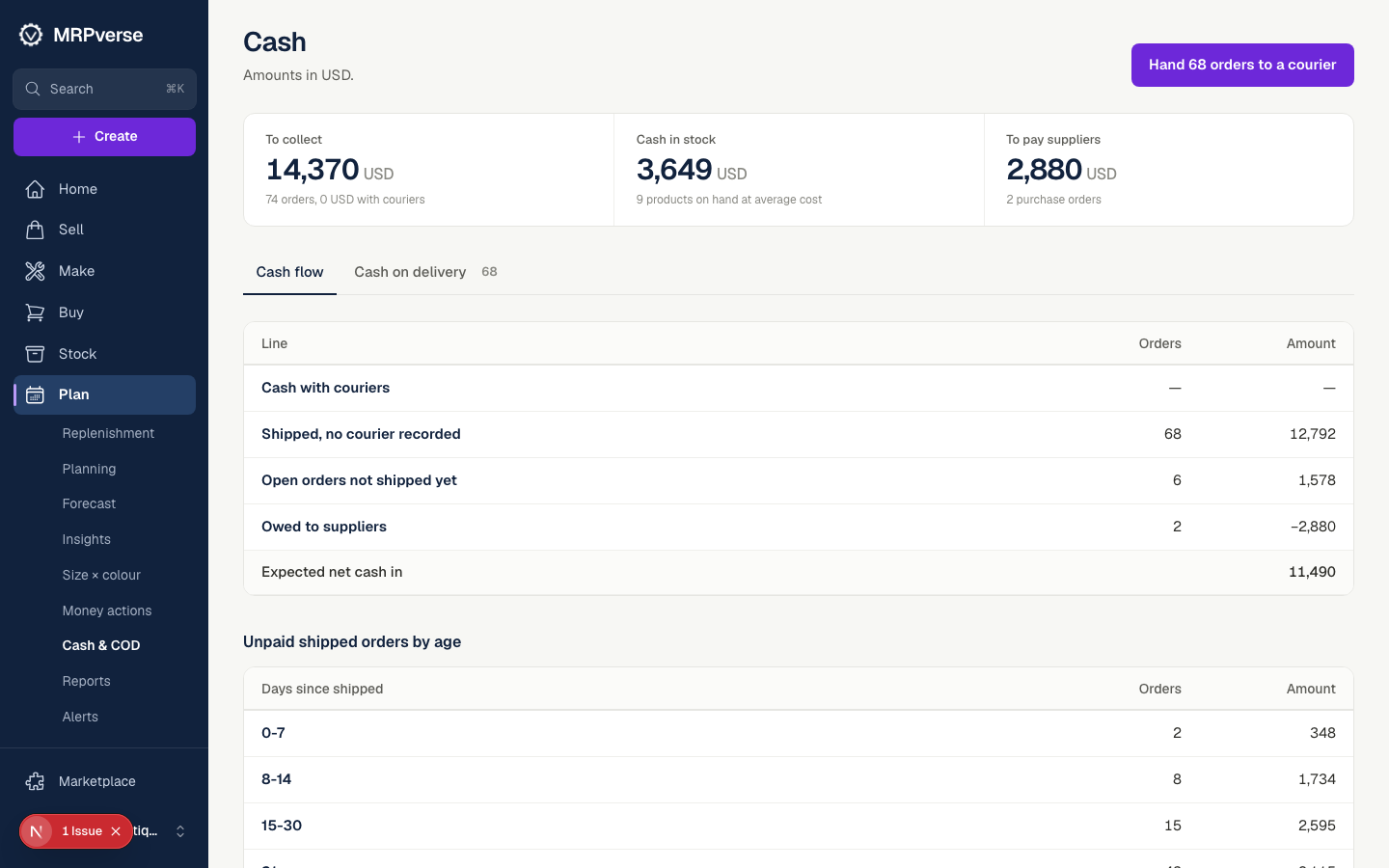
Step 6
Reconcile a settlement
When the courier pays, upload or enter the settlement. Matched orders are marked paid; differences are listed per order so nothing is lost.
Click path:
Cash → (courier) → Settlement
Tip