 MRPverse
Your first BOM and variants
Add the materials, create the product with its sizes and colors, and write the recipe once for every variant.
Two-minute video
A narrated walkthrough of this exact guide. Recording in progress; the script is final and matches the steps below.
Step 1
Add materials
Go to Items → New item. Pick Material, set the unit (m, kg, pcs) and a purchase price. Repeat for each material, or import them from a spreadsheet in one go.
Click path:
Items → New item → Material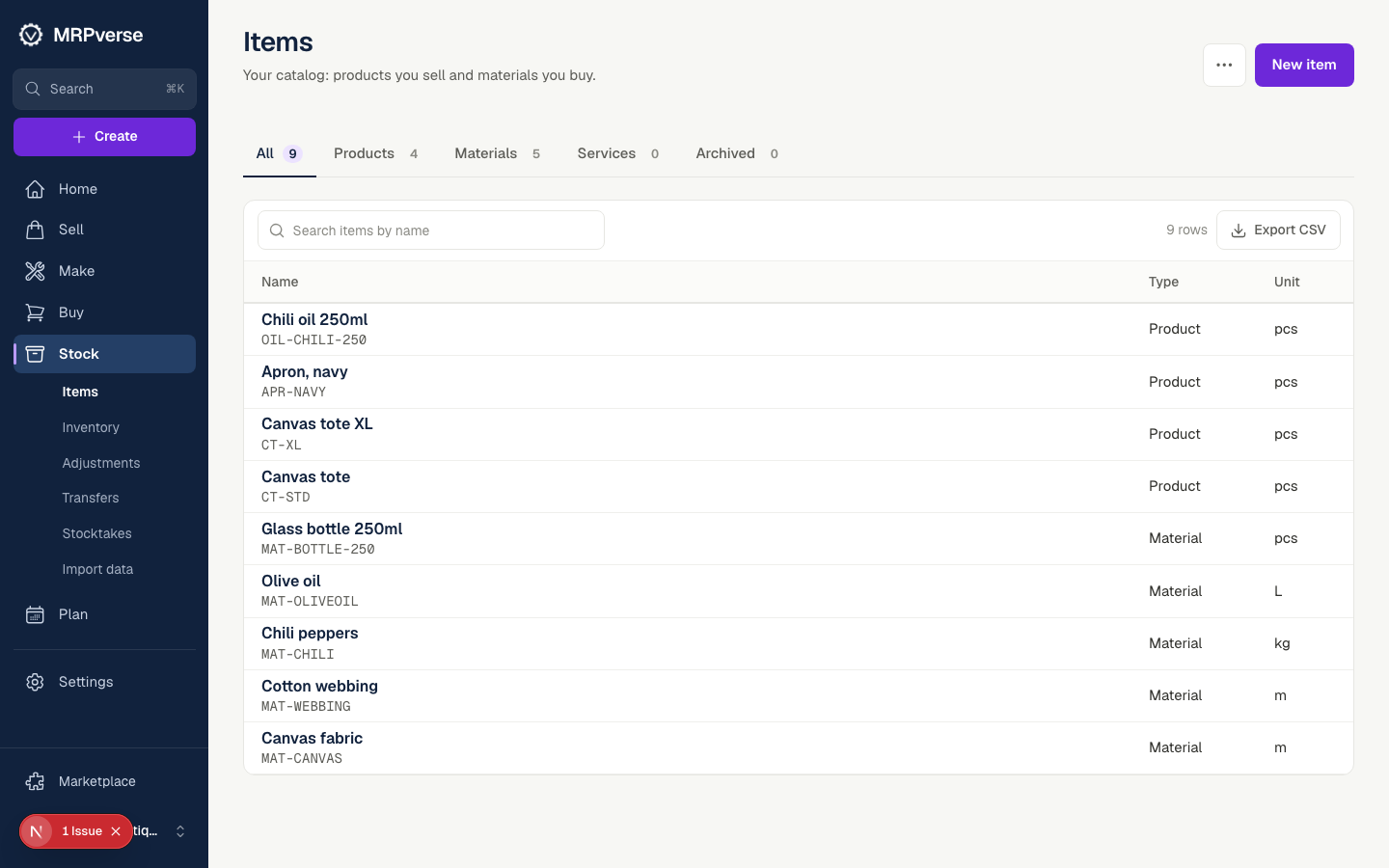
Step 2
Create the product
New item → Product. Give it a name, SKU and sales price. If it is sold on Shopify, use the same SKU so orders match automatically.
Click path:
Items → New item → ProductStep 3
Add variants
Open the product → Variants. Add options such as Size and Color and generate the combinations. Each variant gets its own SKU, barcode and stock.
Click path:
Items → (product) → VariantsStep 4
Write the recipe
Open the product → BOM. Add one row per material with the quantity per unit. The cost rollup updates as you type.
Click path:
Items → (product) → BOM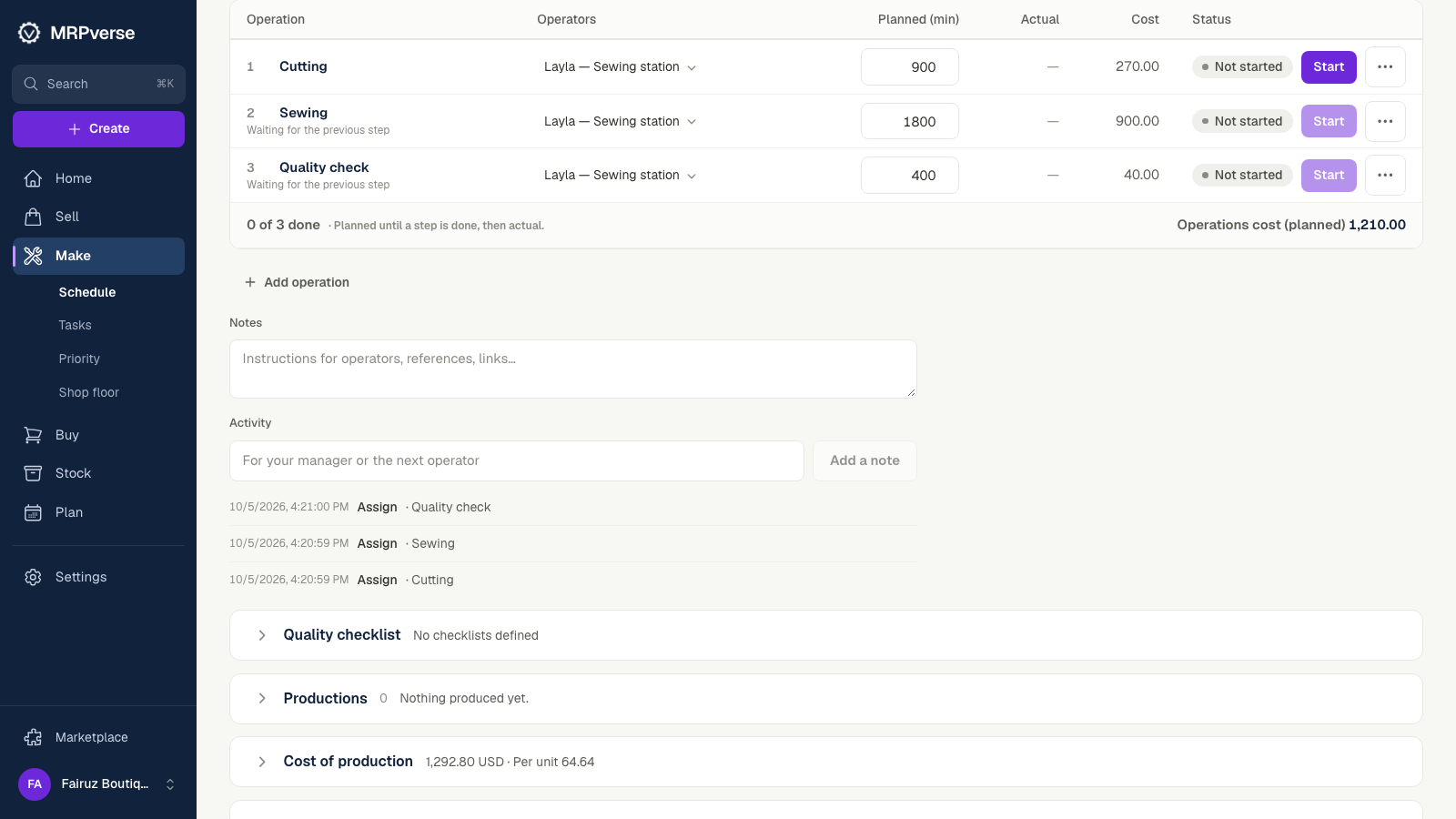
Step 5
Per-variant quantities
Where a size uses more fabric, override the quantity for that variant only. Everything else inherits from the product recipe.
Click path:
Items → (product) → BOM → variant rowStep 6
Add operations
Open the product → Operations. Add Cutting, Sewing, Packing with a work center and minutes per unit. Labour cost is added to the rollup and the steps appear on every manufacturing order.
Click path:
Items → (product) → Operations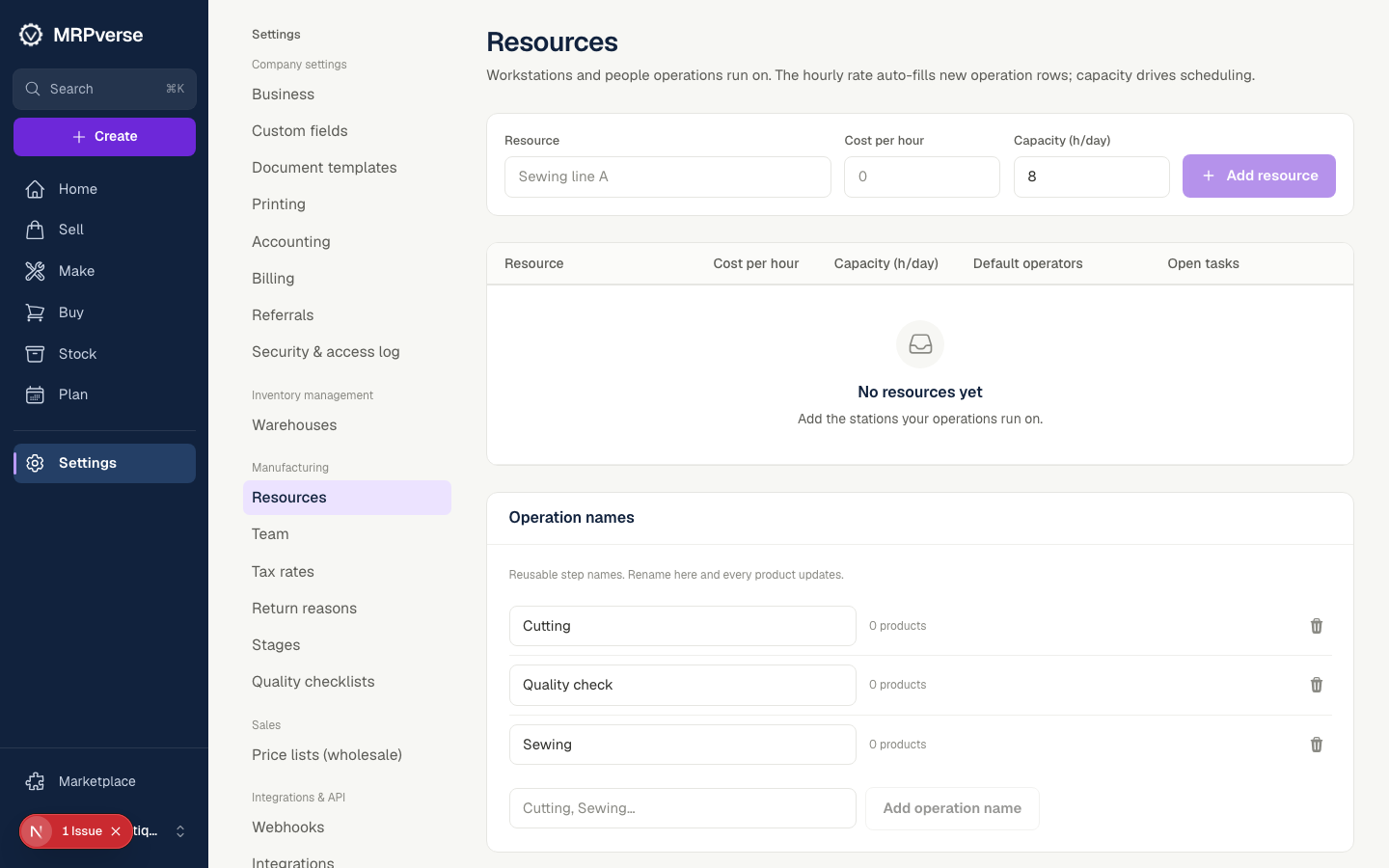
Tip