 MRPverse
First manufacturing order and the operator app
Plan the run, hand the operations to the floor, and let the ledger record what was actually consumed.
Two-minute video
A narrated walkthrough of this exact guide. Recording in progress; the script is final and matches the steps below.
Step 1
Create the order
Go to Make → New manufacturing order. Pick the product and variant, the quantity and a due date. Material availability shows per line: in stock, expected, or missing.
Click path:
Make → New manufacturing order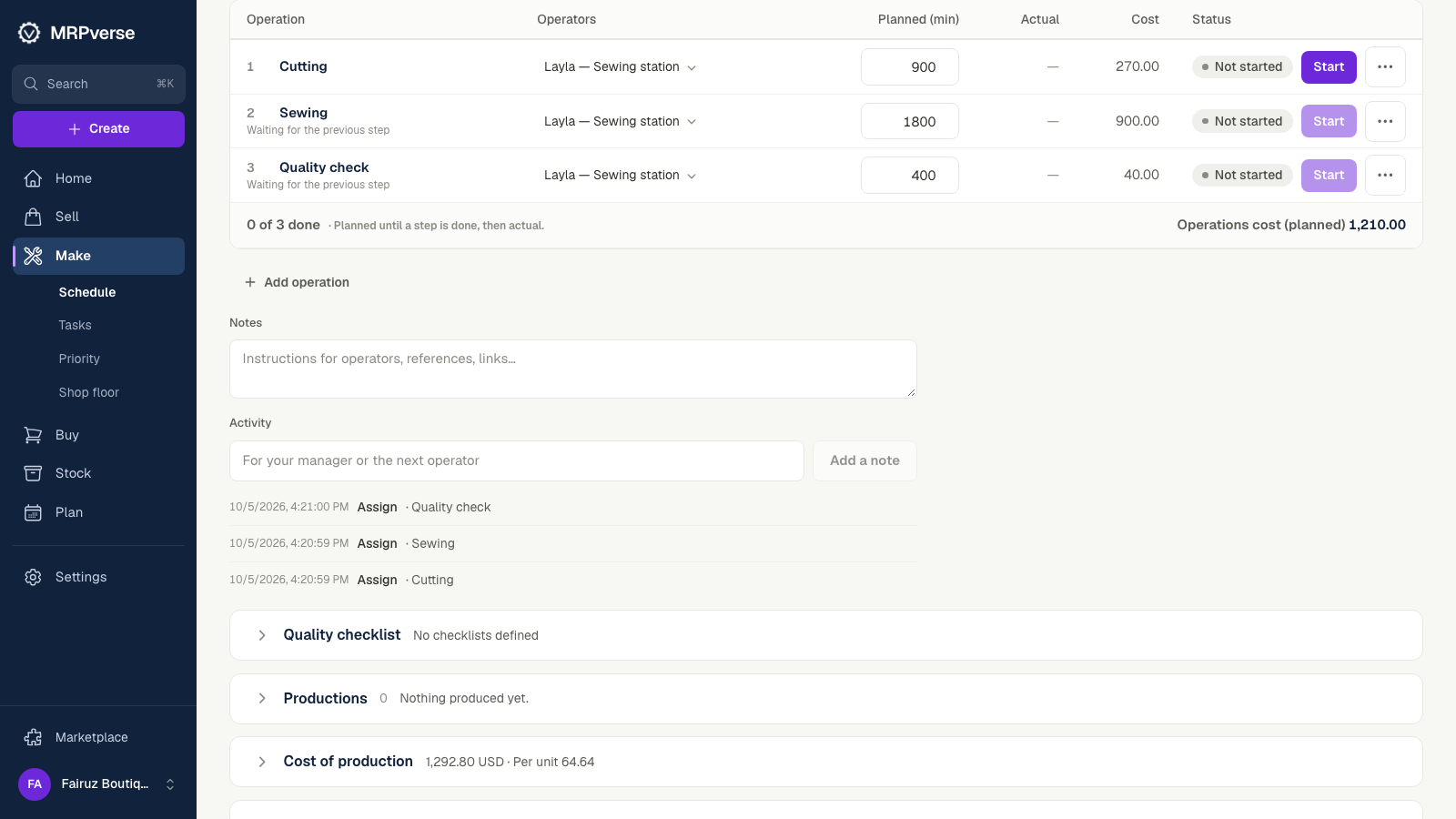
Step 2
Review operations
The order carries its operations with the work center and planned hours. Reorder or add a step here if this run is special.
Click path:
Make → (order) → OperationsStep 3
Set priority
Open Make → Priority. Drag the order into position. The floor sees the same list in the same order.
Click path:
Make → Priority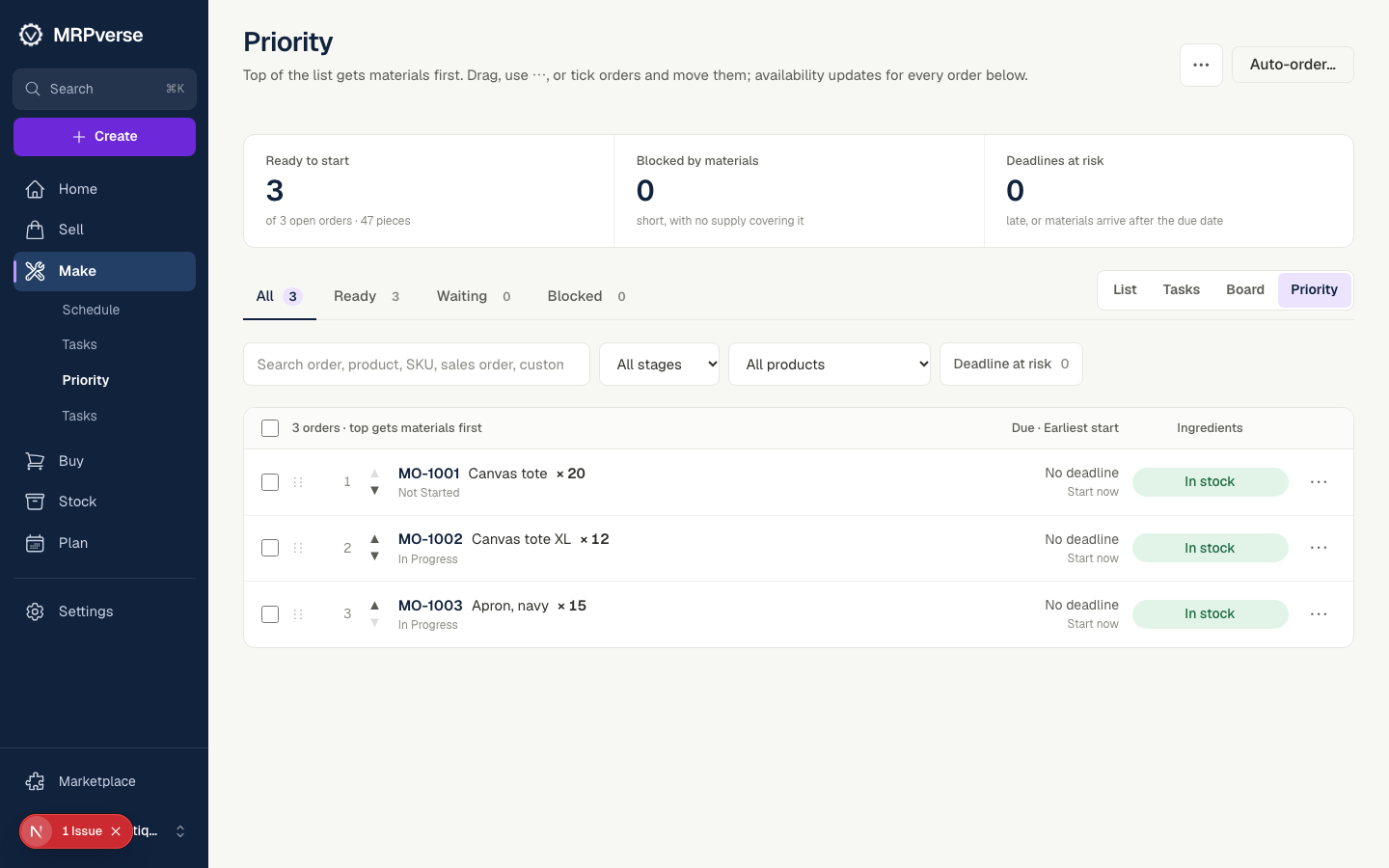
Step 4
Open the operator app
On a tablet open /floor and sign in with the operator PIN from Settings → Team. Tasks are listed by priority with Start, Pause and Finish.
Click path:
/floor → PIN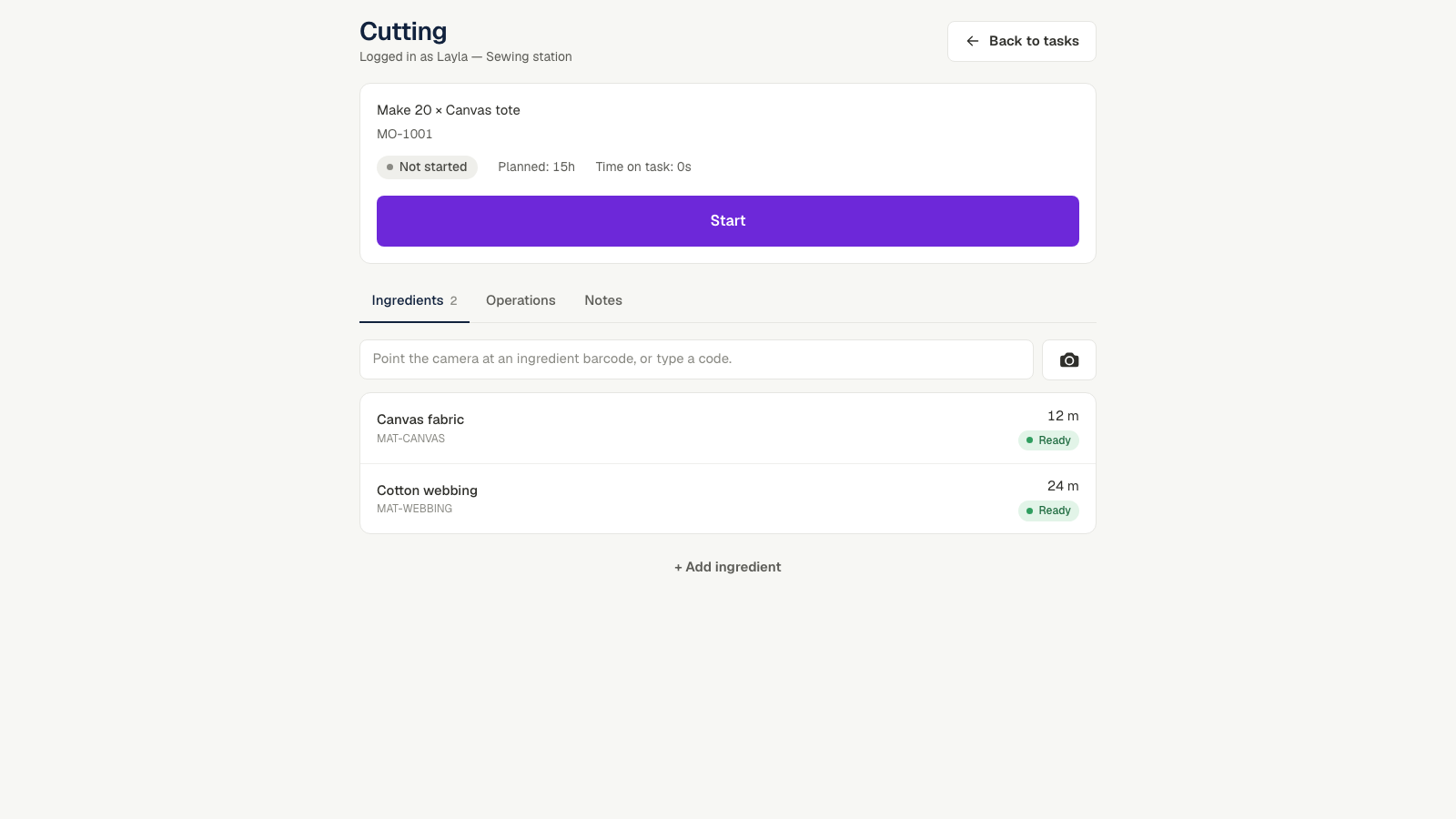
Step 5
Scan to work
Turn on Scan mode and scan the order barcode from the printed MO to start, scan again to finish. Scan a material SKU to log consumption against the focused task.
Click path:
/floor → Scan modeStep 6
Close and compare
When the last operation finishes, the order closes. Open it to see planned vs actual quantities and hours; finished goods are received into stock with a lot number.
Click path:
Make → (order)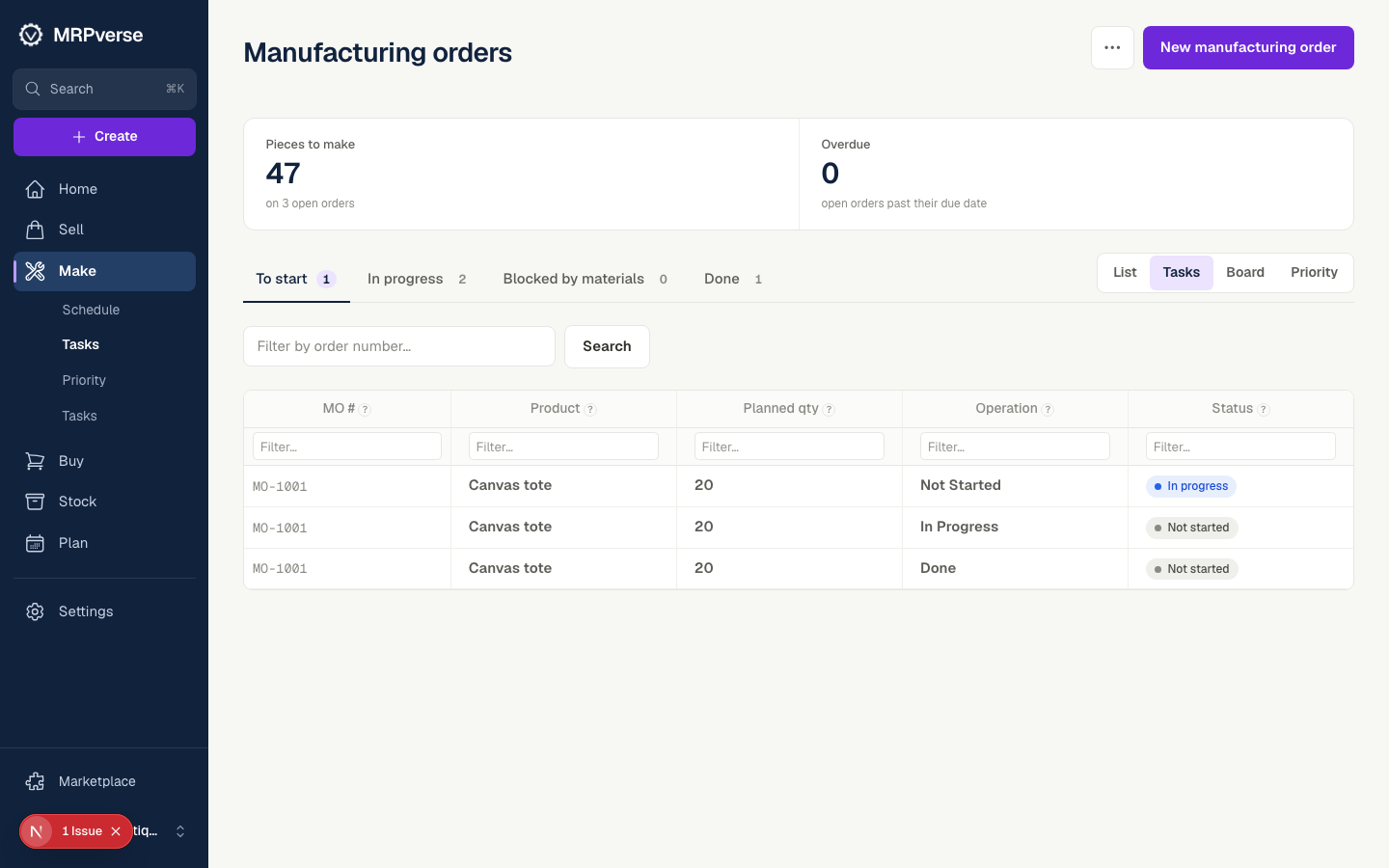
Tip