 MRPverse
Replenish, forecast and money actions
Let the Plan screen say what to buy or make, how much and by when, and turn it into orders in one click.
Two-minute video
A narrated walkthrough of this exact guide. Recording in progress; the script is final and matches the steps below.
Step 1
Set reorder points
On Stock, open an item → Stock page and set its reorder point and safety stock. Or use the reorder-point calculator and import the sheet.
Click path:
Stock → (item) → Stock page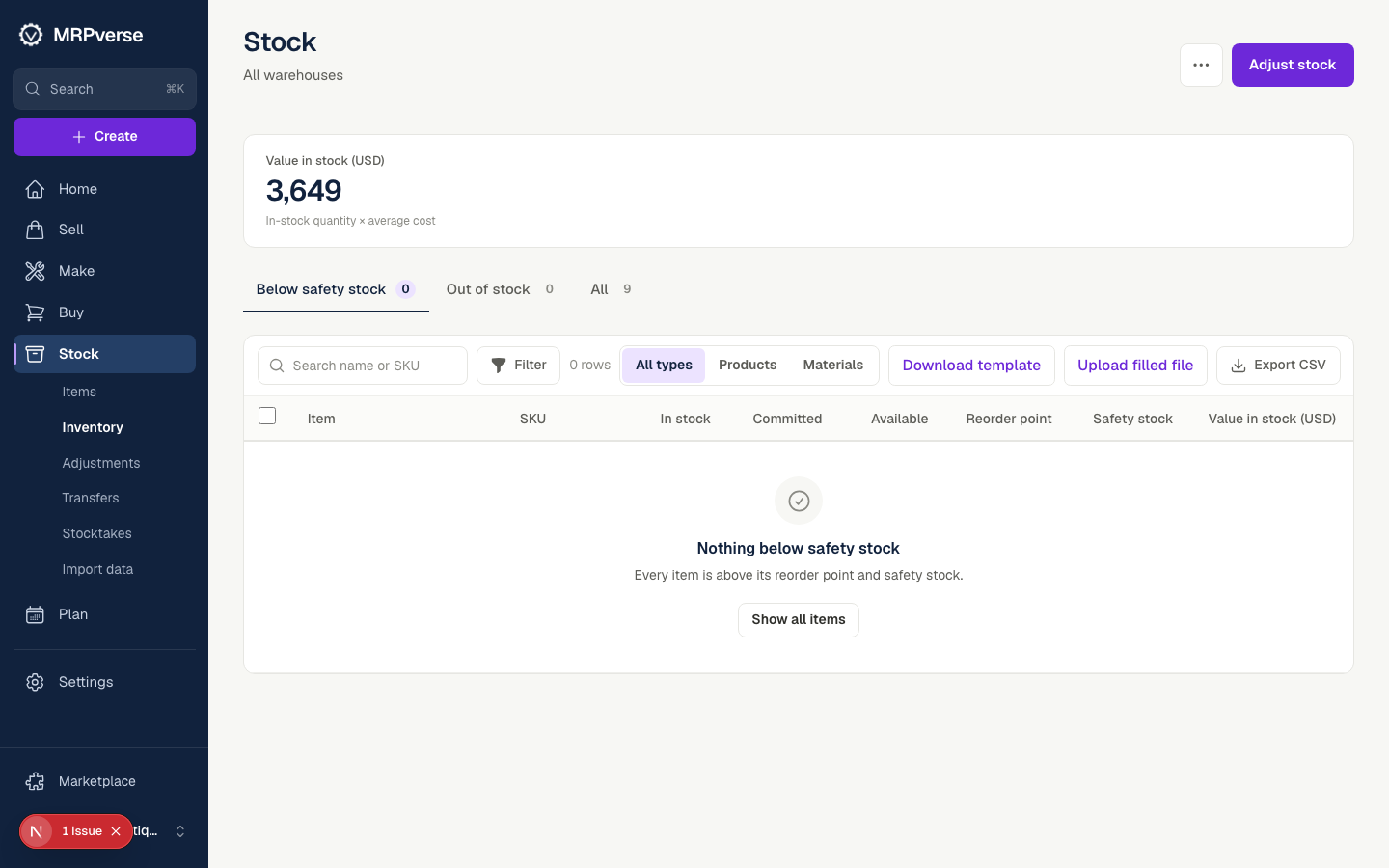
Step 2
Open Plan → Replenishment
Every material and product below its point is listed with the shortfall, the supplier or recipe, lead time and a suggested quantity.
Click path:
Plan → Replenishment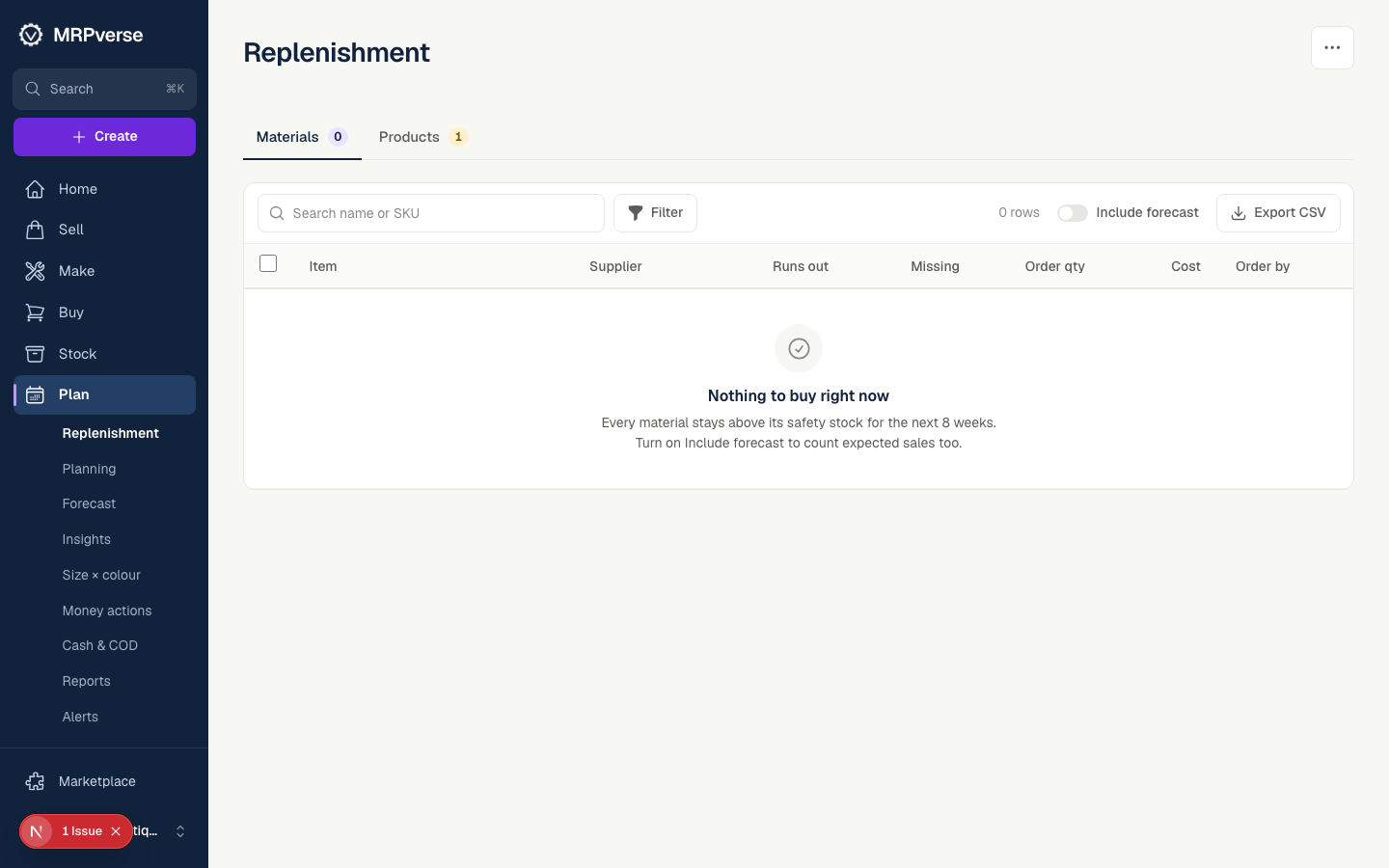
Step 3
Create the orders
Tick the rows and click Replenish selected. The summary groups materials by supplier and products by recipe; Confirm creates draft purchase and manufacturing orders.
Click path:
Plan → Replenishment → Replenish selected → ConfirmStep 4
Check the forecast
Plan → Forecast projects demand per item from sales history and Shopify orders. On Premium the AI forecast adds seasonality; the suggested quantities on Replenishment use it.
Click path:
Plan → Forecast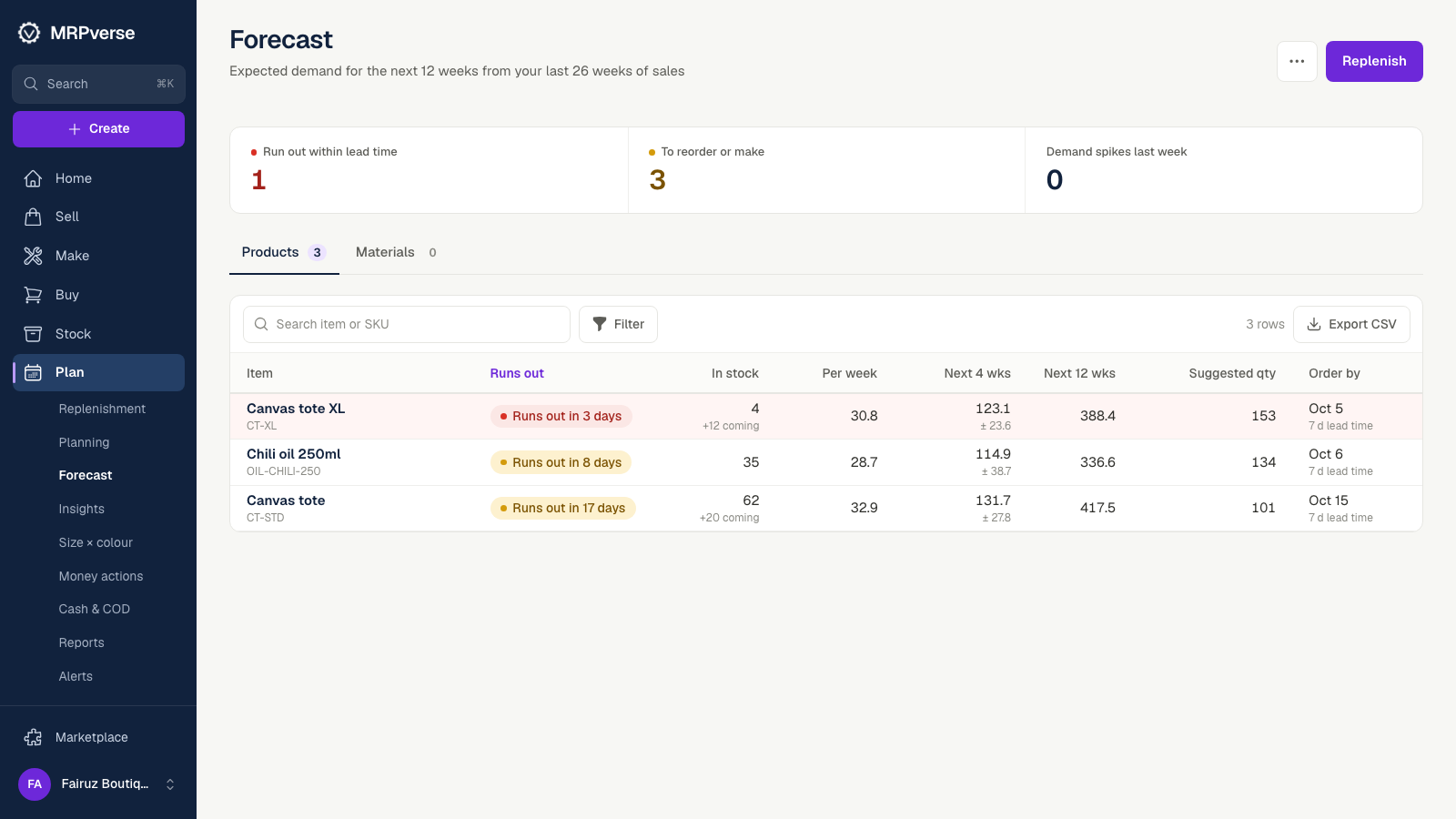
Step 5
Open Money
The Money screen ranks today's actions by dollar impact: replenish before stock-out, clear slow stock, fix margins. Each row opens the exact screen to act on.
Click path:
Money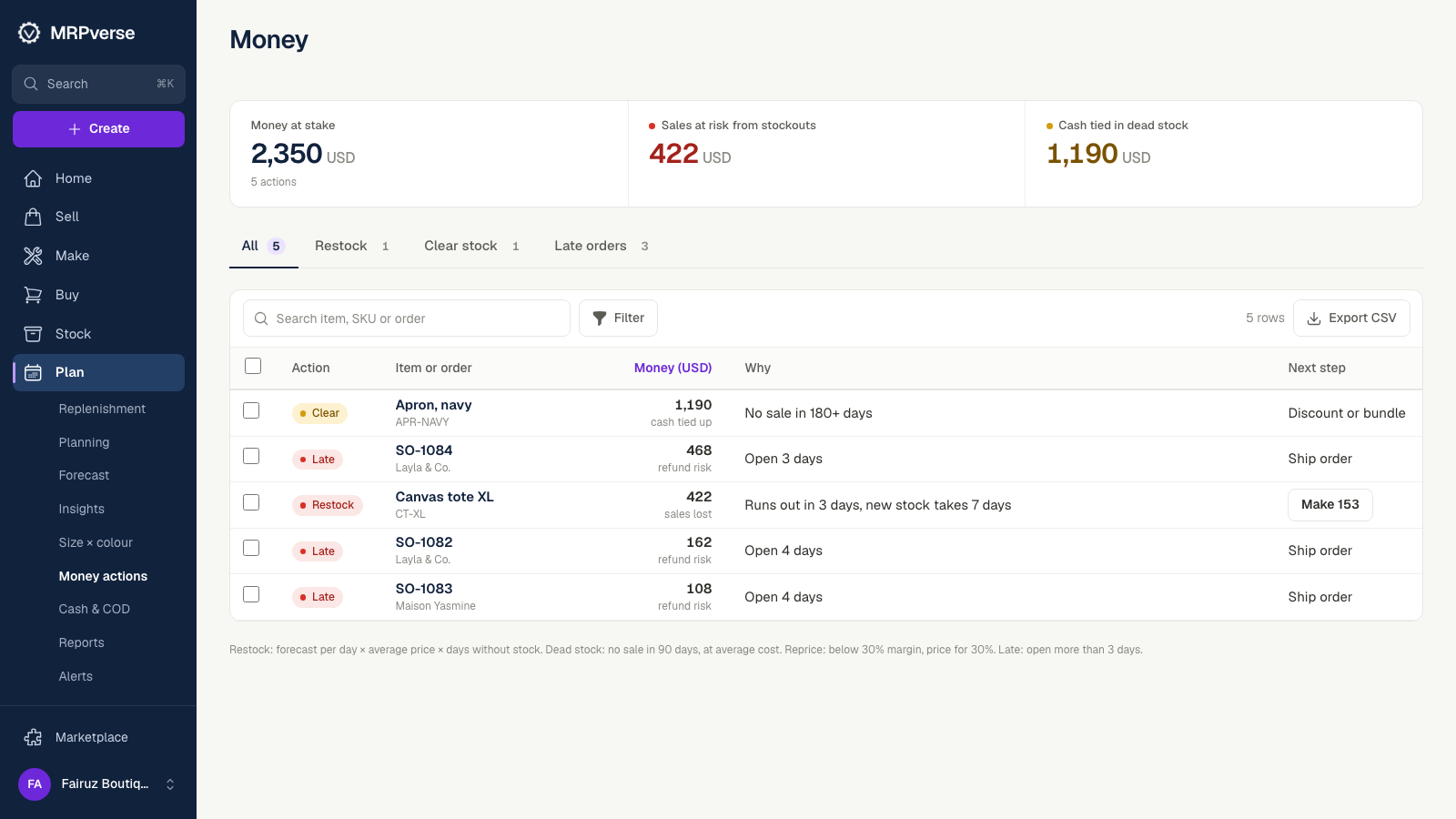
Step 6
Receive and close the loop
When the purchase order arrives, receive it with the lot number and landed cost. Stock, average cost and the next replenishment run all update from the same ledger.
Click path:
Buy → Purchase orders → (order) → Receive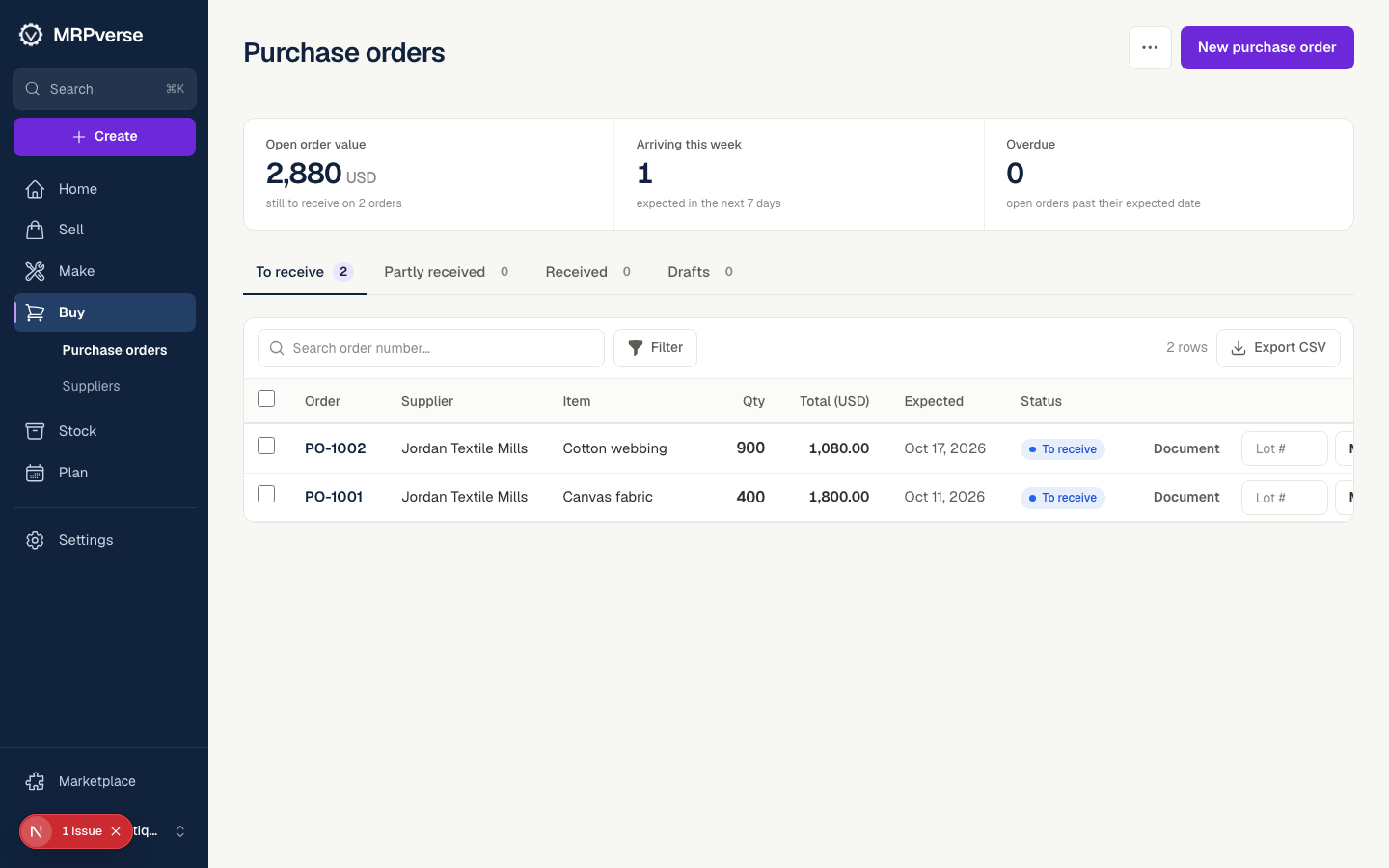
Tip